Both merge the current commit into a previous commit, but the difference lies in how commit messages are handled.
squash: Combines the messages of the two commits into a single message, which you can then edit.fixup: Discards the message of the fixing commit and preserves the message of the target commit as-is.
If you’re adding a typo or an omission to a commit whose description is already complete, fixup is the right choice. If you need to rewrite the meaning of multiple commits into a single commit, use squash.
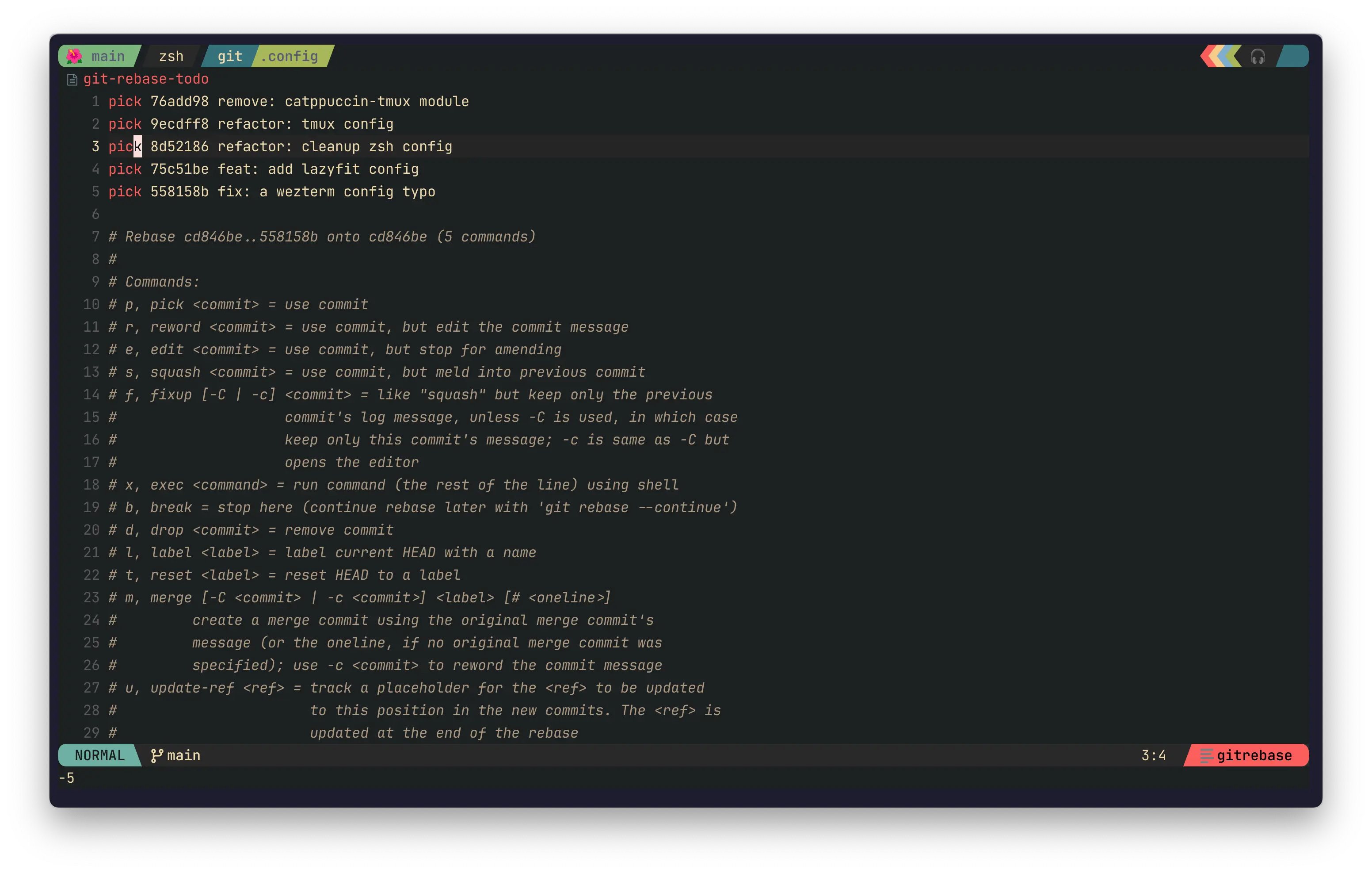
squash
Commits changed to squash or s in the interactive rebase list are merged into the commit immediately above them.
pick   9ecdf8 refactor: tmux config
squash 8d5218 refactor: cleanup zsh config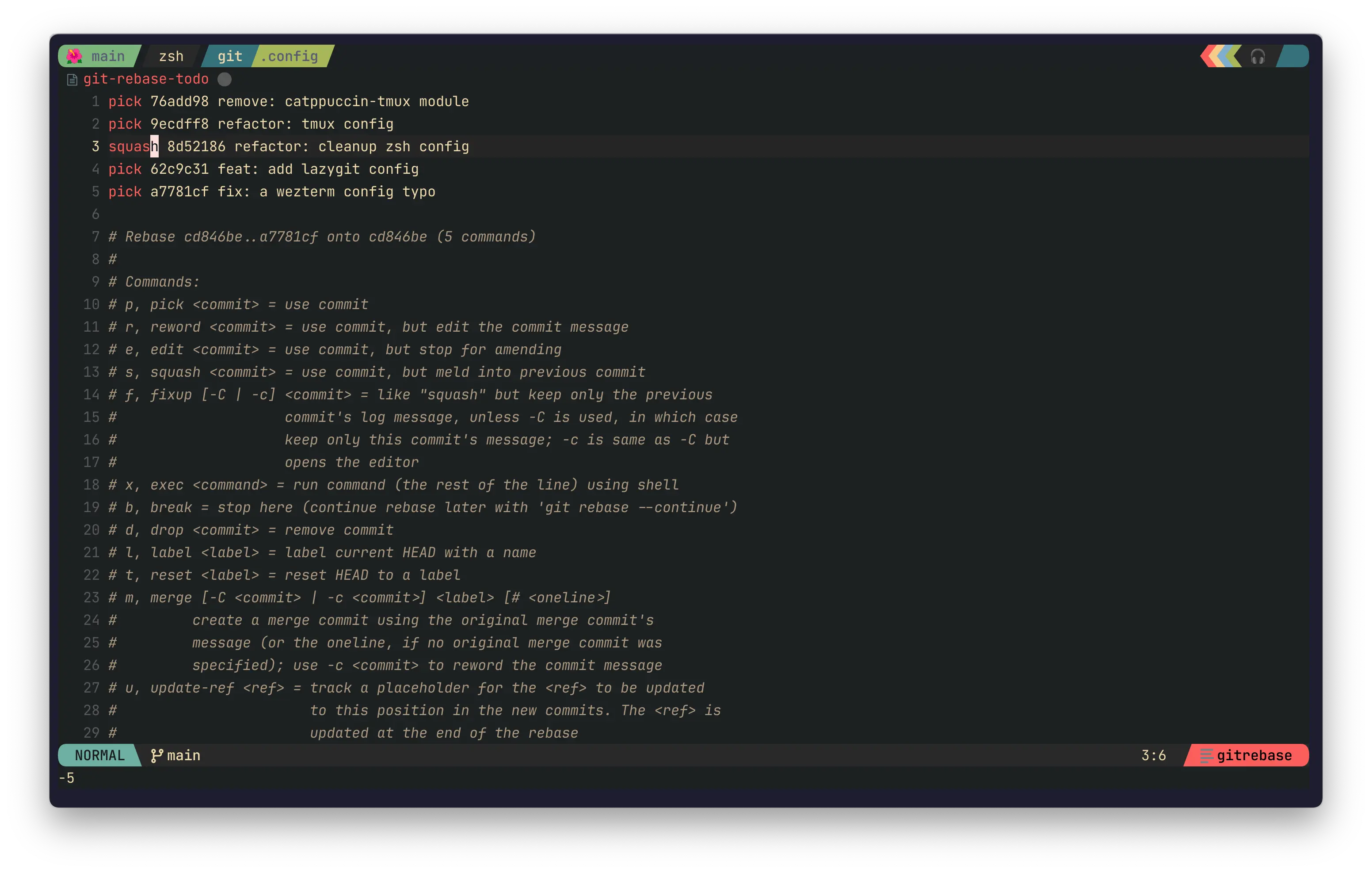
Git opens the commit messages to be merged in an editor. This is useful when the final commit needs to describe both actions or when you want to rewrite the message.
You can also create a squash commit by specifying a target commit in advance.
git commit --squash=<target-commit>This commit has the squash! prefix, and --autosquash—which will be explained later—moves it to the target location.
fixup
fixup or f also merges the changes into the commit immediately above it. The default fixup discards the squash commit’s message, so you don’t need to reopen the message editor.
Let’s say I discovered an omission in the lazygit configuration commit 3f05b2a.
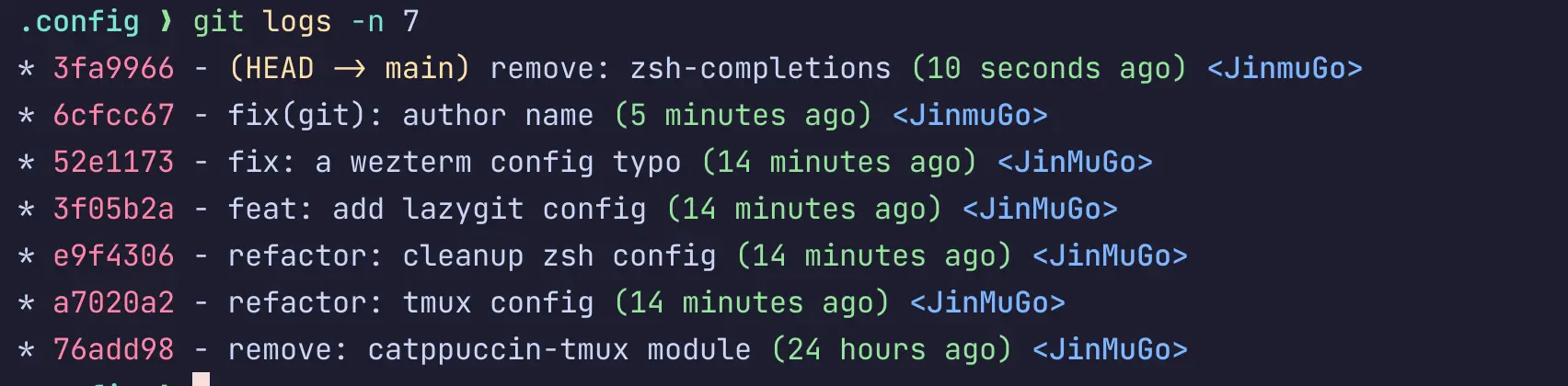
After staging the modified files, create a commit using Git’s --fixup option.
git add lazygit/
git commit --fixup=3f05b2a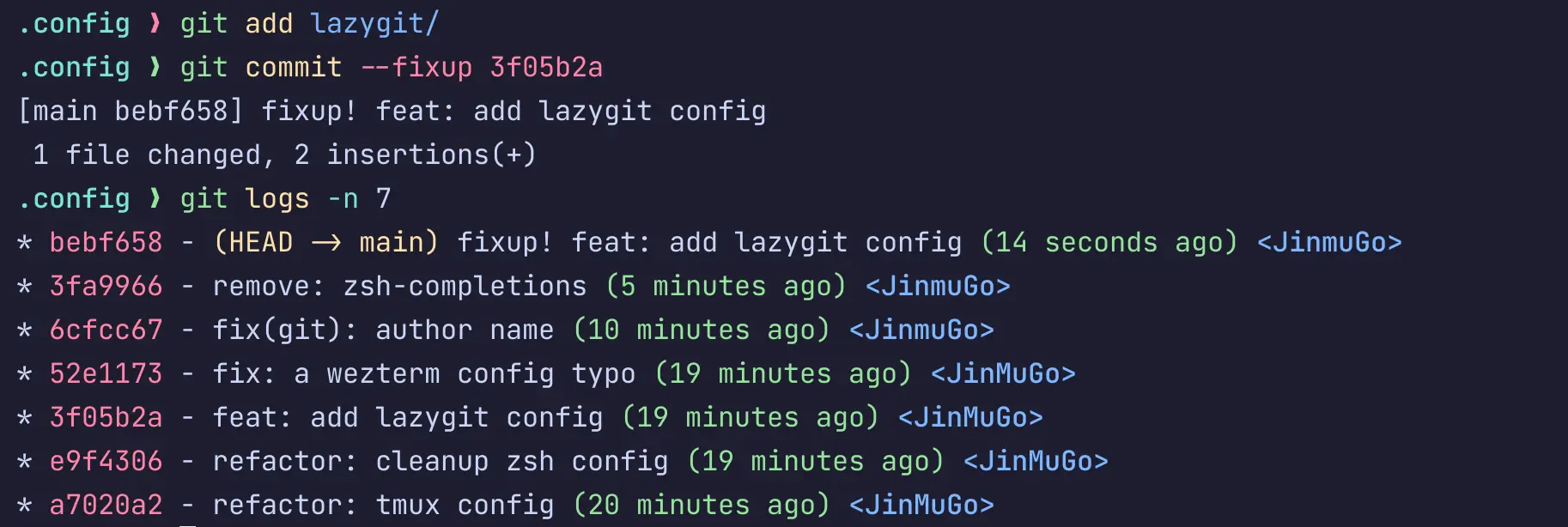
Git automatically generates an accurate title, such as fixup! feat: add lazygit config. While you can type the prefix manually, it’s easy to make mistakes if the target title changes or if there are similar commits, so it’s safer to use git commit --fixup=<commit>.
Squashing to the Target’s Location with autosquash
A fixup commit is created on the HEAD you’re working on and may be located away from the target. --autosquash finds fixup!, squash!, and amend! commits, moves them immediately after the target, and adjusts the rebase action accordingly.
git rebase -i --autosquash <base>Specify the commit immediately preceding the range to be squashed in <base>. To squash starting from the target in the example, you can run the following:
git rebase -i --autosquash 3f05b2a^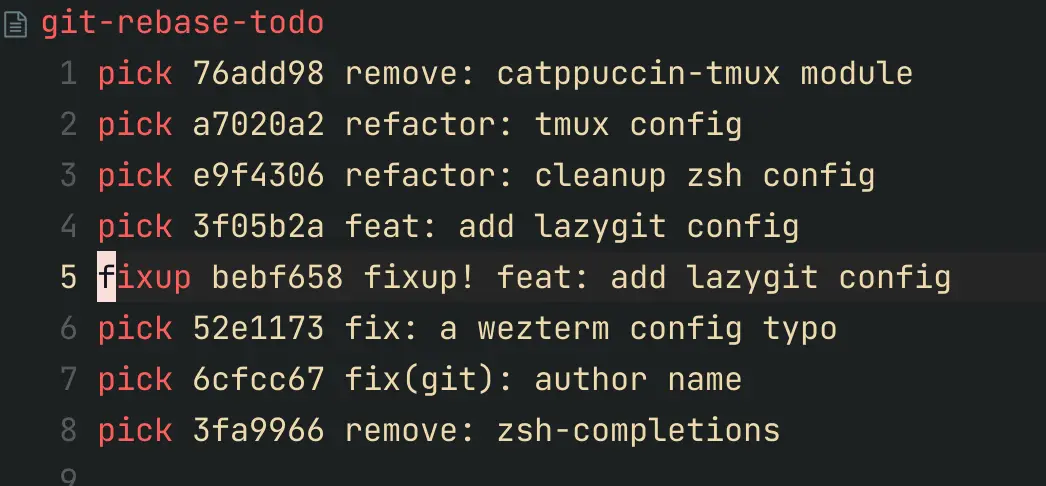
Once you review and save the list, the squashed changes will be merged into the target commit, and the fixup! commit will be removed.
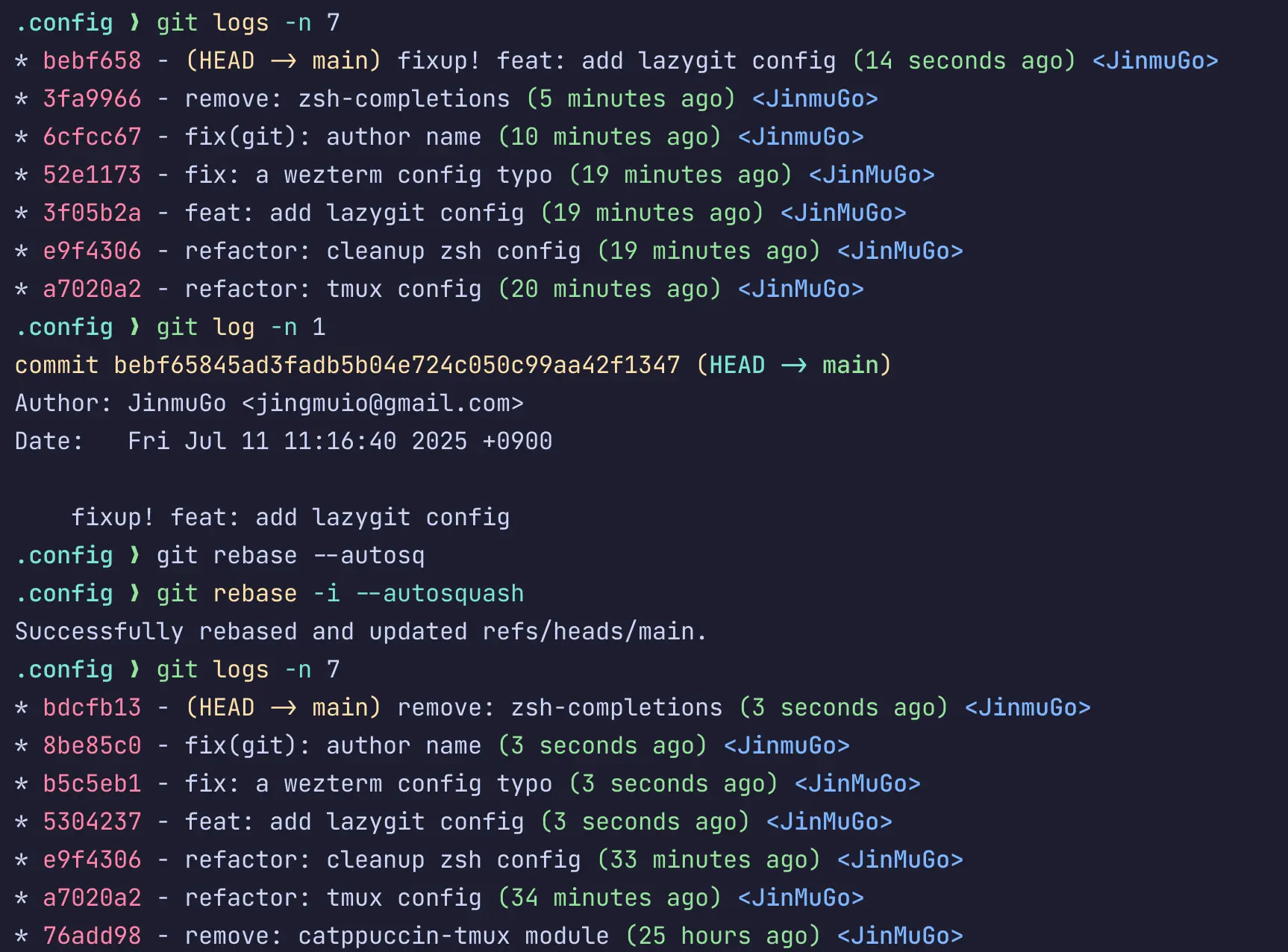
If you don’t want to enter the option every time, you can use Git’s default settings.
git config --global rebase.autoSquash trueEven after setting this, you can still manually verify the order before saving the list from git rebase -i <base>.
When You Want to Edit the Message Too
The latest versions of Git support message rewriting even within the fixup family.
| Command | Result |
|---|---|
git commit --fixup=<commit> | Merge changes while preserving the existing target message |
git commit --fixup=amend:<commit> | Squashes changes while preserving the target message |
git commit --fixup=reword:<commit> | Squashes changes while rewriting only the target message |
amend: and reword: create an amend! commit, and when rebasing with --autosquash, that message is used as the new message for the target commit. For simple corrections, the default --fixup is sufficient.
Comparison at a Glance
| Criteria | squash | fixup |
|---|---|---|
| Changes | Merged into a previous commit | Merged into a previous commit |
| Message | Combine and edit multiple messages | Discard the amended message and retain the target message |
| Main Purpose | Rewrite the meaning of multiple changes into a single commit | Address minor omissions, typos, or review feedback in an existing commit |
| Quick Creation | git commit --squash=<commit> | git commit --fixup=<commit> |
Safe Usage Scenarios
Rebase generates new commit IDs. It is safest to perform this on a local branch that has not yet been shared.
If you absolutely must fix a personal branch that has already been pushed to the remote, coordinate with your team members first, and after testing, use the following command instead of the standard --force:
git push --force-with-leaseEven --force-with-lease does not resolve conflicts if someone else is working on the same branch. It’s best to avoid rewriting the public history of shared branches and the default branch.
The workflow I use most often is short.
git commit --fixup=<target>
git rebase -i --autosquash <base>
While working, immediately record improvements as fixup commits, and then consolidate them all at once before review. This allows you to create a readable history without the hassle of repeatedly editing commit messages.